Screen recording has become an important feature for Android users. Whether you want to create a tutorial, record mobile gameplay, make a YouTube video, save an online class, demonstrate an Android app, or capture something happening on your phone screen, a good screen recorder can make the process much easier.
However, many users do not want a watermark appearing on their recorded videos. A watermark can make a video look less professional, especially when the recording is intended for YouTube, social media, online courses, or a website.
Fortunately, there are several Android screen recording applications that advertise watermark-free recording. In this article, we look at five useful options: XRecorder, AZ Screen Recorder, Vidma Screen Recorder, ADV Screen Recorder, and AX Recorder.
Table of Contents
The features and availability of individual functions can vary depending on your Android version, device and app version. For example, internal audio recording is generally dependent on Android’s media-capture capabilities, and some apps may offer different features on different devices. Below is a 5 Best Android Screen Recording Apps without watermark which users will find easy and useful to use:
1. XRecorder
InShot Inc.’s XRecorder is one of the popular screen recording apps for Android. Its Google Play listing states that it supports recording without a watermark, without root access and without a recording time limit. It also supports screen recording, screenshots, gameplay recording, internal audio on Android 10 and above, facecam, live streaming and basic video editing.

XRecorder can be useful for beginners because the main recording controls can be accessed through a floating window. Users can select recording quality and other settings before starting.
How to use XRecorder
- Download and install XRecorder from Google Play.
- Open the application and allow the permissions required for screen recording.
- Select your preferred recording resolution, frame rate and audio settings.
- Tap the floating recording button.
- Start the screen recording.
- Open the app, game or screen that you want to record.
- When finished, use the floating controls or notification controls to stop recording.
- Open the recorded video from XRecorder and use the built-in editor if required.
- Save or share the finished video.
XRecorder supports resolutions from 240p to 1080p and frame rates up to 60 FPS according to its current Google Play listing. It also provides tools for trimming, merging, adding music and adjusting video speed.
Pros of XRecorder
- No watermark according to its Google Play listing.
- No root access required.
- No recording time limit.
- Supports gameplay recording.
- Supports internal audio on Android 10 and above.
- Supports facecam.
- Supports up to 1080p and 60 FPS recording.
- Includes basic video editing tools.
- Can be used for tutorials, gameplay and social media videos.
Cons of XRecorder
- Contains advertisements and optional in-app purchases.
- Some audio-recording functions depend on the Android version.
- High-resolution recording can consume considerable storage space.
- Recording performance can vary between Android devices.
Download XRecorder from Google Play
2. AZ Screen Recorder
AZ Screen Recorder is another well-known Android screen recording application. Its Google Play listing describes it as a high-quality screen recorder with audio, video editing, screenshots and live-streaming features. It states that the application supports no-watermark recording and no recording time limit.
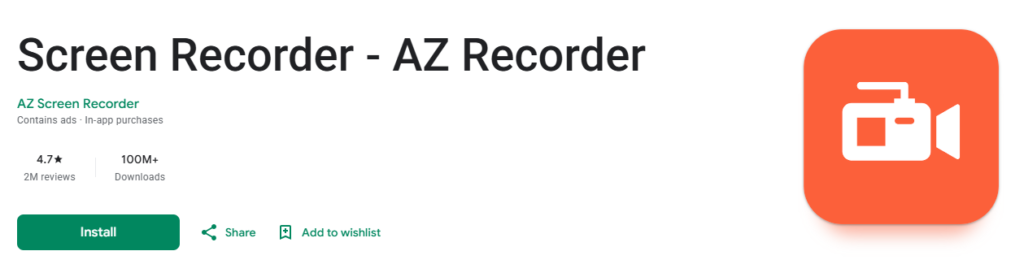
The application is particularly useful for people who want more than basic screen recording. It includes features such as facecam, drawing on the screen, GIF creation, audio recording and video editing.
How to use AZ Screen Recorder
- Install AZ Screen Recorder from Google Play.
- Open the application.
- Give the necessary screen-overlay and recording permissions.
- Configure the resolution, frame rate and audio options.
- Tap the recording button.
- Confirm the Android screen-recording permission if requested.
- Perform the activity you want to record.
- Open the notification panel or floating controls when you want to stop.
- Stop the recording.
- Open the recorded video and edit it before saving or sharing.
AZ Screen Recorder also provides tools that can be useful for educational content. For example, users can draw or annotate the screen while recording. This can be helpful when explaining an Android app, demonstrating a process or creating a tutorial.
The developer also states that AZ Screen Recorder supports resolutions up to Full HD and frame rates up to 60 FPS, while internal audio recording requires Android 10 or later.
Pros of AZ Screen Recorder
- No watermark according to its current Google Play listing.
- No recording time limit.
- No root access required.
- Easy-to-use controls.
- Supports microphone audio.
- Supports internal audio on compatible Android versions.
- Includes facecam.
- Provides drawing and annotation tools.
- Includes video editing functions.
- Supports live streaming.
Cons of AZ Screen Recorder
- The free application contains advertisements.
- Some advanced features may require payment.
- High-quality recording can use significant storage.
- Internal audio capabilities depend on Android and device restrictions.
- Older or less powerful phones may experience performance problems when recording at high settings.
Download AZ Screen Recorder from Google Play
3. Vidma Screen Recorder
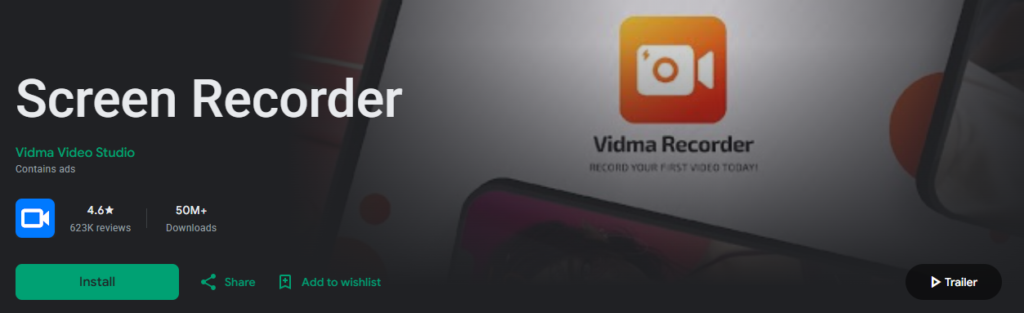
Vidma Screen Recorder is another option for people looking for a free screen recorder without a watermark. The current Google Play listing for Vidma Screen Recorder Lite states that it provides watermark-free screen recordings and is designed to be lightweight and easy to use. It supports audio recording, facecam and adjustable recording settings. Vidma can be useful for students, teachers, gamers and content creators who want a relatively simple screen recording application.
How to use Vidma Screen Recorder
- Download Vidma Screen Recorder from Google Play.
- Open the application.
- Grant the permissions needed for screen recording.
- Configure the video resolution and frame rate.
- Choose your preferred audio source.
- Enable the floating record button if required.
- Tap the record button to begin.
- Carry out the activity that you want to capture.
- Pause or stop the recording using the recording controls.
- Open the finished recording and share or edit it.
One useful feature is the ability to record the screen and front camera simultaneously. This can be useful when creating reaction videos, gaming videos or instructional content where the creator wants to appear on screen.
Pros of Vidma Screen Recorder
- Free screen recorder.
- No watermark according to its Google Play listing.
- Lightweight application.
- Supports audio recording.
- Supports facecam.
- Suitable for tutorials and online classes.
- Useful for gameplay recording.
- Provides adjustable recording settings.
- Designed to use relatively little device memory.
Cons of Vidma Screen Recorder
- Contains advertisements.
- Available features can change with app updates.
- Audio recording capabilities may depend on the Android device.
- High-resolution videos can occupy substantial storage.
- Some users may prefer a more advanced editor for professional video production.
Download Vidma Screen Recorder from Google Play
4. ADV Screen Recorder
ADV Screen Recorder is another Android screen recorder that can be considered when looking for watermark-free recording. Its Google Play listing describes features including screen recording, customizable recording controls, camera overlay and options for resolution and frame rate. Current user feedback on the listing also specifically mentions watermark-free recording.
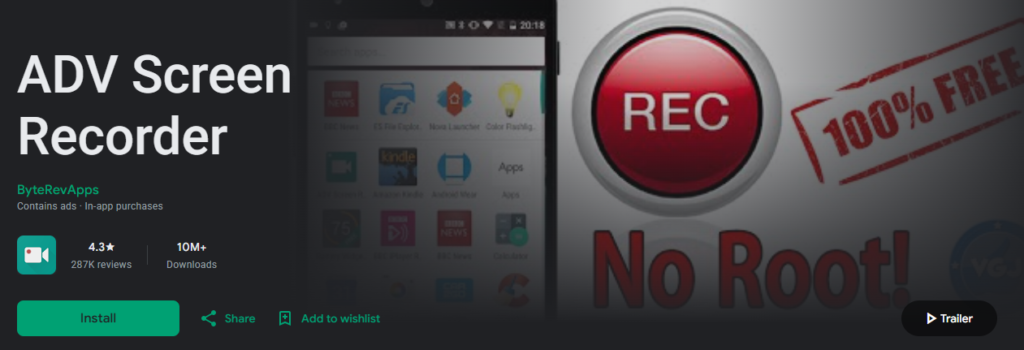
ADV Screen Recorder can be particularly useful when you want to add your camera to the screen recording or customize how the recording controls appear.
How to use ADV Screen Recorder
- Install ADV Screen Recorder from Google Play.
- Launch the application.
- Allow the required permissions.
- Configure your video settings.
- Select whether you want to use the camera overlay.
- Start the screen recording using the recording button.
- Use your phone normally while the application records the screen.
- Stop the recording from the notification or recording controls.
- Locate the recorded video in your device gallery.
- Edit and share the video if necessary.
One of the useful aspects of ADV Screen Recorder is its customization. Depending on the current version and device, users can adjust recording settings and use camera overlays.
Pros of ADV Screen Recorder
- Watermark-free recording is supported.
- Simple recording controls.
- Supports camera overlay.
- Provides customizable recording options.
- Suitable for tutorials and gameplay.
- Supports different resolutions and frame rates.
- Can be useful for YouTube content creators.
Cons of ADV Screen Recorder
- Some users have reported problems with the floating recording button.
- Audio behavior can vary between Android devices.
- The interface may not be as feature-rich as some competing screen recorders.
- Recording at high resolution can affect performance on older smartphones.
Download ADV Screen Recorder from Google Play
5. AX Recorder
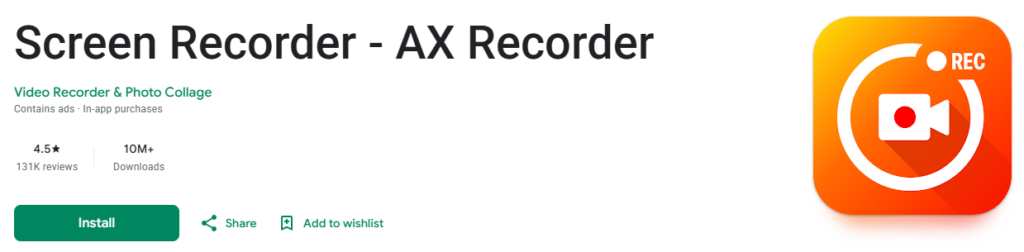
AX Recorder is another Android screen recorder that advertises no-watermark recording. Its Google Play listing says it supports both external and internal audio recording, screen recording, facecam, drawing tools and a floating control button. This makes AX Recorder an interesting option for users who want additional features while keeping the recorded video clean.
How to use AX Recorder
- Download AX Recorder from Google Play.
- Open the application.
- Allow the required permissions.
- Select the desired recording quality.
- Choose whether you want microphone or internal audio.
- Enable facecam if you want your face to appear in the recording.
- Start recording using the floating button or notification controls.
- Perform the activity you want to capture.
- Stop the recording when finished.
- Open the recorded video and share it to your preferred platform.
AX Recorder also provides a brush or drawing feature, which can be helpful when making educational tutorials. You can use on-screen annotations to highlight buttons, menus or specific areas of an application.
Pros of AX Recorder
- No watermark according to its Google Play listing.
- Supports internal and external audio.
- Supports facecam.
- Includes drawing tools.
- Floating controls make recording convenient.
- Suitable for gameplay and tutorials.
- Easy sharing to social media and other platforms.
- Designed for screen recording without root access.
Cons of AX Recorder
- Contains advertisements and in-app purchases.
- Some features may vary according to device and Android version.
- High-quality recordings require more storage.
- Internal audio recording may not work with every app because Android and individual applications can restrict audio capture.
Download AX Recorder from Google Play
Which Android Screen Recorder Should You Choose?
The best screen recorder depends on what you want to do. If you want a popular, easy-to-use application with screen recording, audio, facecam and editing features, XRecorder is a strong option. Its current Google Play listing reports more than 100 million downloads and specifically states that it has no watermark and no recording time limit.
If you want a more comprehensive tool with drawing, editing and livestreaming capabilities, AZ Screen Recorder is worth considering. Vidma Screen Recorder is a good choice if you prefer a lightweight application for basic screen recording, tutorials, online classes and gameplay. ADV Screen Recorder is useful for users who want customization and camera-overlay features, while AX Recorder provides a combination of screen recording, audio, facecam and drawing tools.
Comparison of the Five Apps
| App | Watermark | Audio | Facecam | Best For |
|---|---|---|---|---|
| XRecorder | No | Internal/Mic | Yes | YouTube, gaming and tutorials |
| AZ Screen Recorder | No | Internal/Mic | Yes | Tutorials, editing and streaming |
| Vidma Screen Recorder | No | Yes | Yes | Simple recording and classes |
| ADV Screen Recorder | No | Device-dependent | Yes | Customization and tutorials |
| AX Recorder | No | Internal/External | Yes | Gaming and educational videos |
Important Things to Know Before Screen Recording
A watermark-free screen recorder does not necessarily mean that every feature is completely free. Some applications contain advertisements or offer optional in-app purchases.
You should also check the Android permissions requested by an application before using it. Screen recording normally requires Android’s screen-capture permission, while microphone and camera features require additional permissions.
Another important consideration is audio. Internal audio recording depends on the Android version and the application being recorded. XRecorder, for example, states that internal audio recording is available on Android 10 and above.
Also remember that some apps, streaming services and other content providers can restrict screen capture or audio capture. A screen recorder cannot necessarily bypass those restrictions.
Finally, respect privacy and copyright when recording. Do not record private conversations, meetings or other people’s content without appropriate permission. If you plan to upload a recording to YouTube, Facebook, Instagram or another platform, make sure you have the necessary rights to the recorded material.
Finding a good Android screen recorder without a watermark is easier than it used to be. XRecorder, AZ Screen Recorder, Vidma Screen Recorder, ADV Screen Recorder and AX Recorder all provide options for creating clean screen recordings.
For beginners, XRecorder and Vidma Screen Recorder are worth considering because of their straightforward recording features. AZ Screen Recorder is a strong choice for users who want more advanced tools such as editing, drawing and livestreaming. ADV Screen Recorder and AX Recorder are useful alternatives for users who want camera overlays, customization and additional recording controls.
Before installing any application, check its current Google Play listing because features, advertisements, permissions and pricing can change through updates.